
Race Roster: sending your race to Apteco
Race Roster webhook setup, step by step
Before you start
A webhook is a setting in Race Roster that sends each runner and volunteer to Apteco as soon as they register, so nobody has to export a list. Setting one up takes about 15 minutes.
- One per race: a webhook belongs to one race, so every new race needs its own, set up the same way.
- Same address and key every time: Apteco sends you the webhook address and API key once. Reuse them for every race, every year.
- Donations come separately: the webhook doesn't carry donations. After the race you upload the Donation report (see After the race).
You need:
- Admin access to the race in Race Roster.
- Webhook address: Apteco emails it to you. It starts
https://raceroster.apteco-integrations.com/webhook/ - API key: Apteco sends it separately. Keep it private: don't forward it or save it in a shared document.
- Your login for the Apteco upload site, for early registrations and donations.
Create the webhook in Race Roster
Open the race. Sign in to Race Roster and open the new race from your events list.
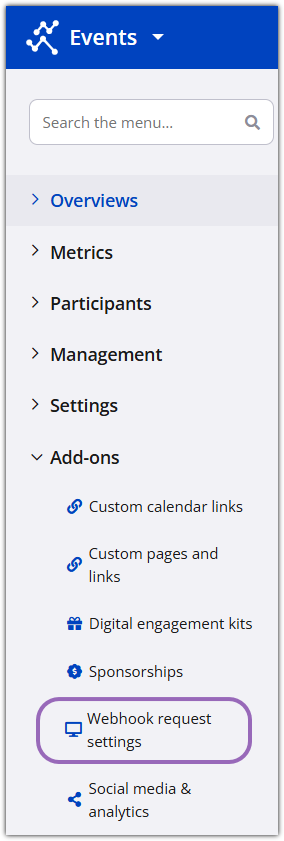
Open the webhook settings. In the race's left-hand menu, open Add-ons and click Webhook request settings.
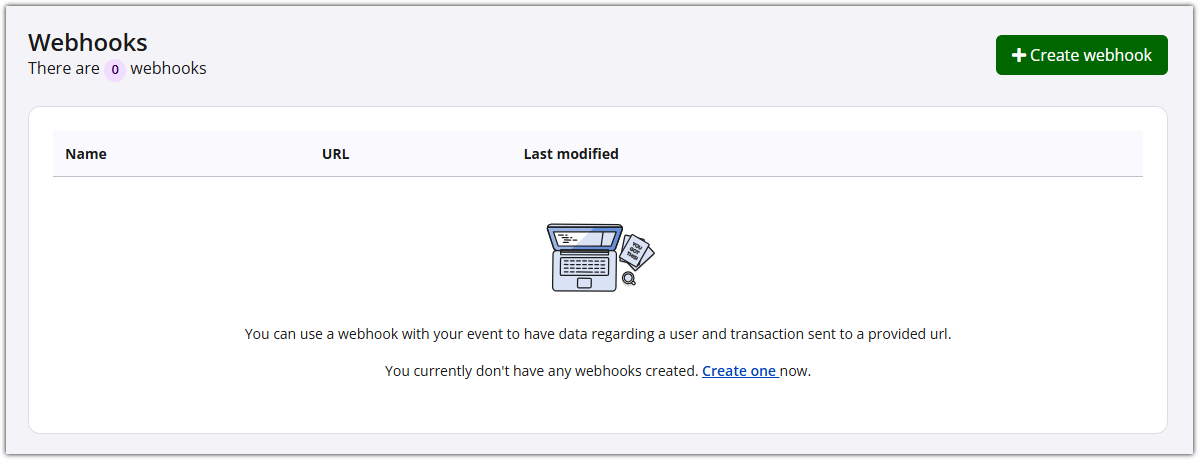
Create a webhook. Click Create webhook.
Name it and make it active.
- Name: Apteco
- Status: Active
- Endpoint URL: paste the webhook address Apteco sent you.
- Request method: POST
- Tick Send data as JSON.
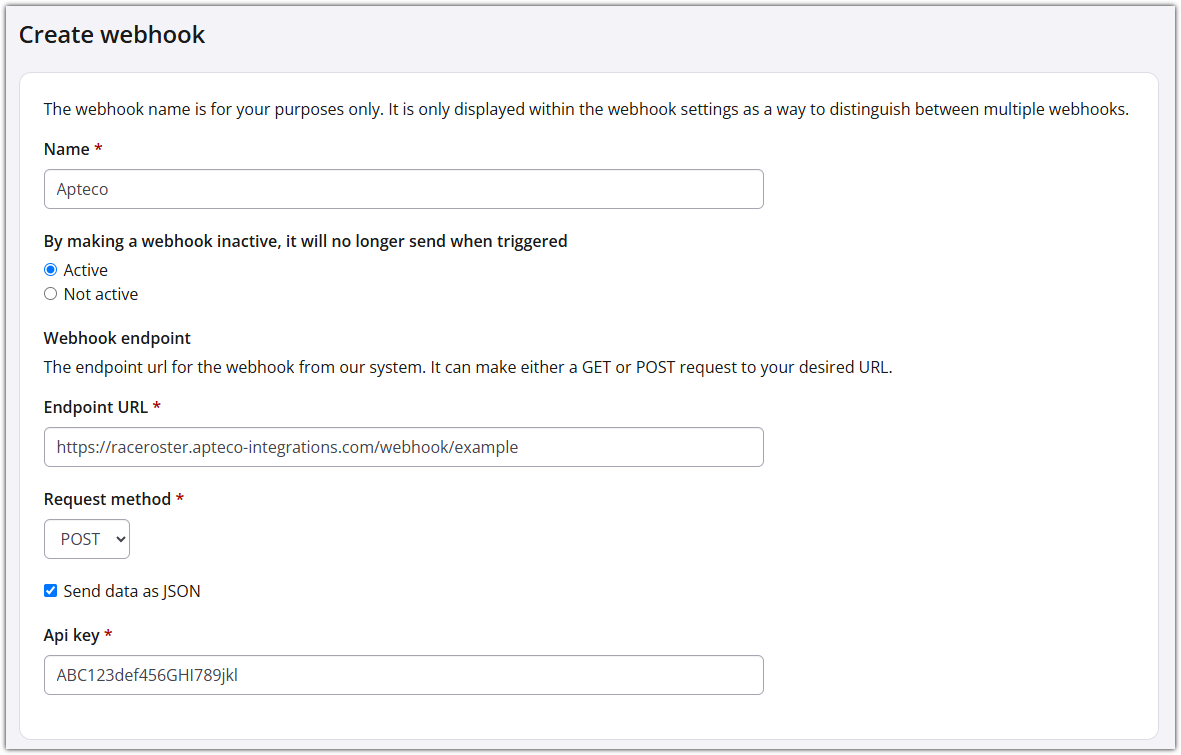
Replace the API key. Race Roster fills in an API key of its own. Delete it and paste in the key Apteco sent you. If Race Roster's own key is left in, nothing it sends can be accepted.

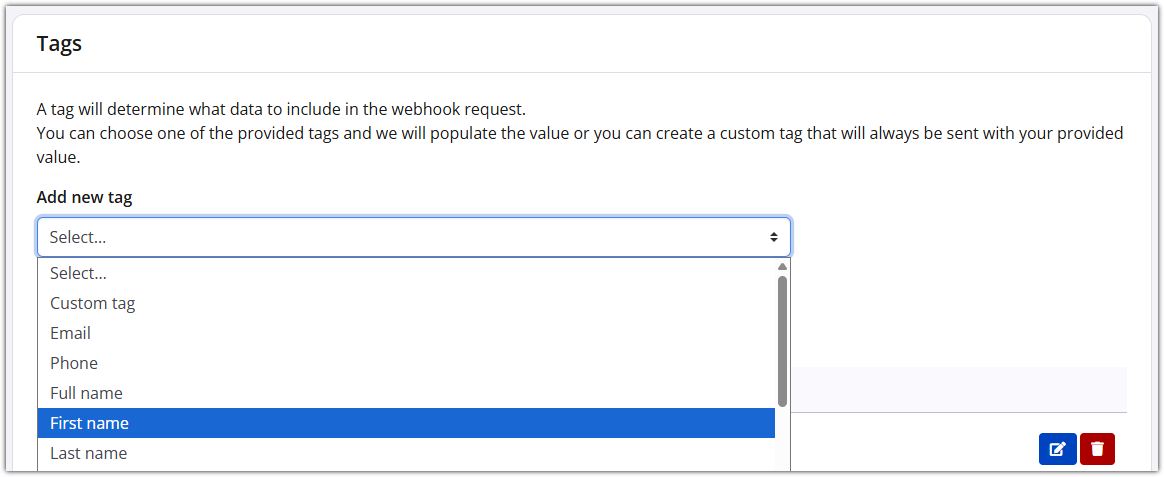
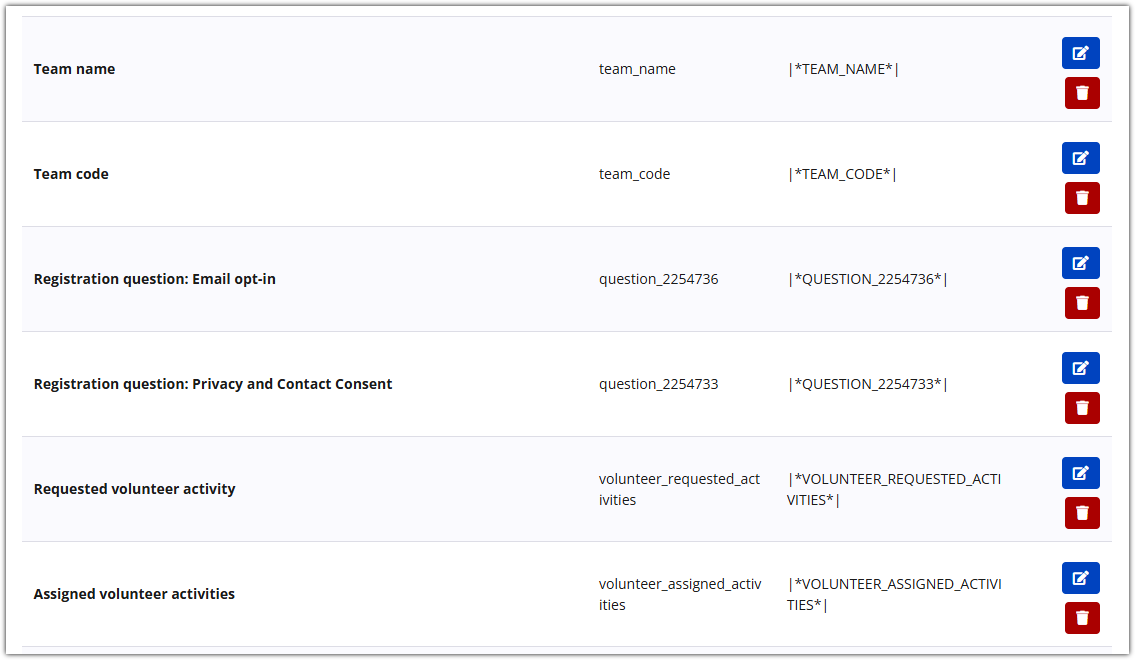
Choose the tags. Tags are the fields Race Roster sends. Add the ones below from the Add new tag list.
- Person: First name, Last name, Email, Phone, Address, Address 2, City, Subdivision (region), Postal code, Country, User locale
- Registration: Event Participant ID, Confirmation number, Transaction date (YYYY-MM-DD hh:mm:ss), Sub-event, Distance of sub-event, Registration total
- Event: Event ID, Event name, Event date, Year-over-year event group ID
- Team: Team name, Team code
- Consent questions: the race's email opt-in question and its privacy consent question
- Volunteers: Requested volunteer activity, Assigned volunteer activities, and the race's volunteer questions
- Fundraising: Fundraising URL, Total amount raised (individual), Total amount raised (team), Fundraiser earnings
Don't use Add all tags. It sends emergency contacts, dates of birth and medical answers, which aren't needed and are better not held.
Registration questions belong to each race, so the consent and volunteer questions show up as new tags every year: tick this race's own. Event name and Event date matter most, because they give the race its name and date.
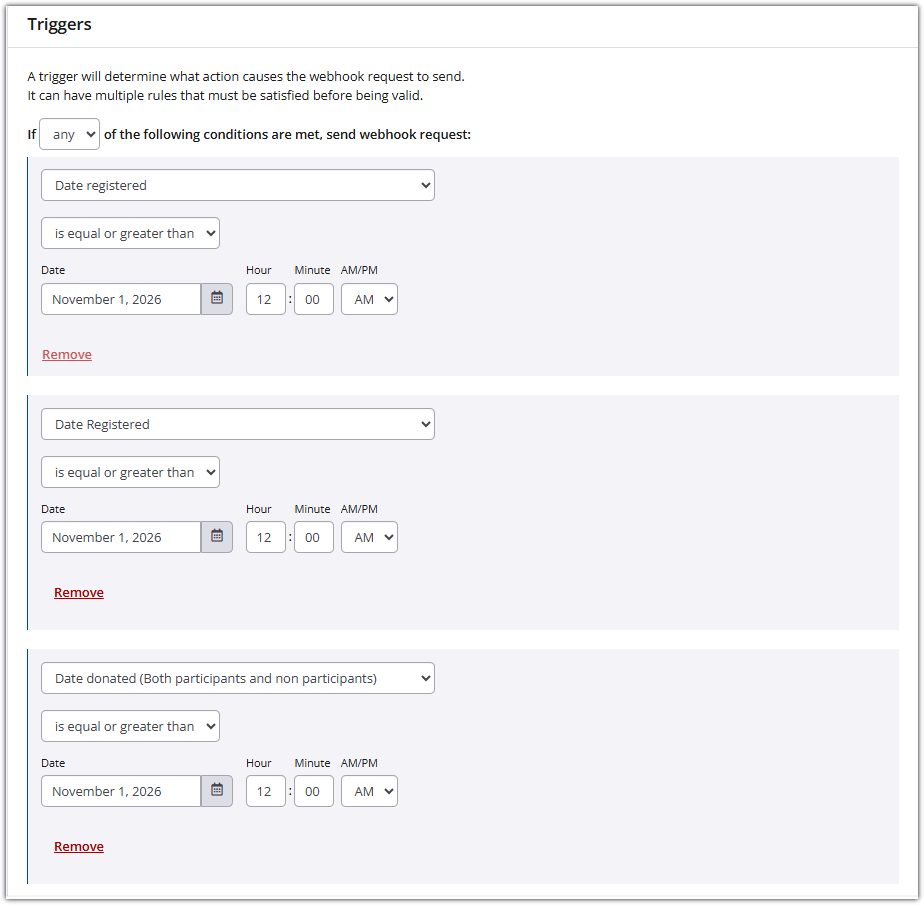
Set the triggers. Triggers decide which records are sent.
- Choose If any of the following conditions are met. It must be any, not all.
- Registration: Date registered, is equal or greater than, a date before registration opened.
- Volunteer: Date Registered, is equal or greater than, the same date.
- Fundraising & donations: Date donated, is equal or greater than, the same date.
Any date before registration opened works, for example January 1 of last year.
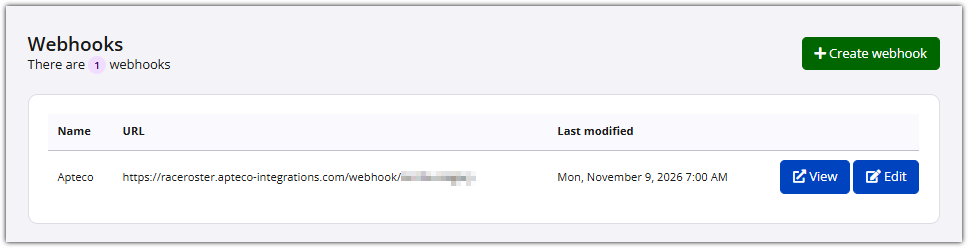
Save. Click Save and Exit. The webhook now shows in the list as Active.
Send a test
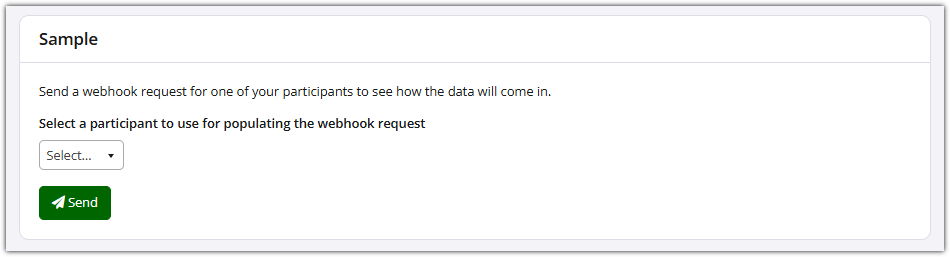
Open the saved webhook. Click View, then Sample.
Pick a participant and click Send. This only works once the race has its first registration.
Let Apteco know you've sent it, and we'll confirm it arrived.
Note: Sample only lists the first 100 participants. Someone added by hand in Race Roster doesn't go through the webhook, so Sample is the only way to test before real registrations come in.
If registration is already open
The webhook only sends registrations made after it was saved. Race Roster doesn't go back and send earlier ones. If people registered before you set it up:
Export the race's participant list and volunteer list from Race Roster as CSV files. Selecting all columns is fine: only the ones needed are kept.
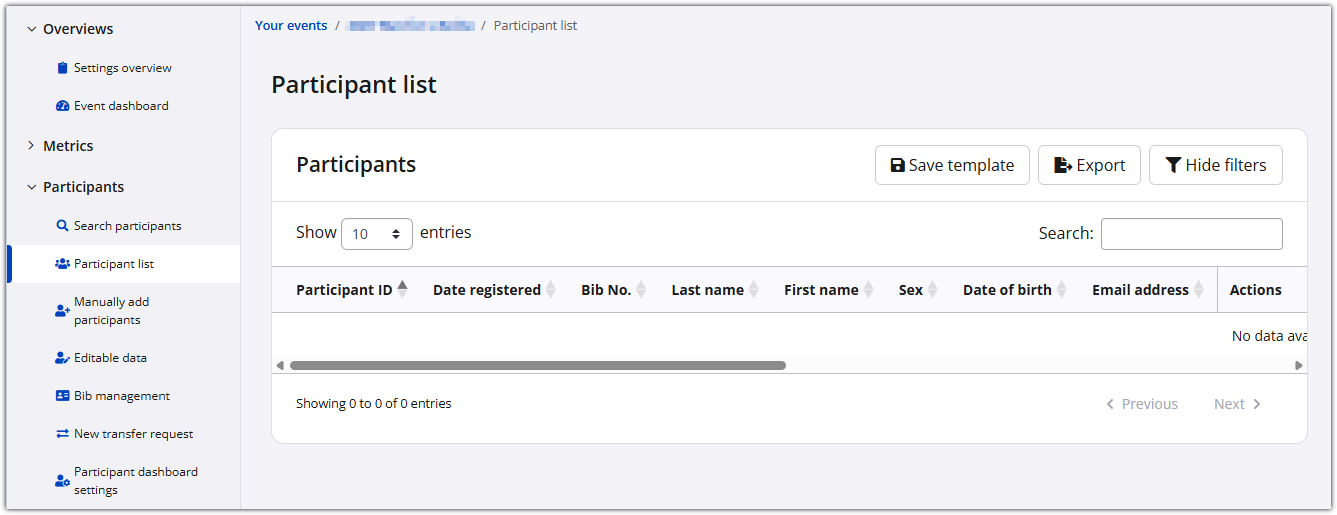
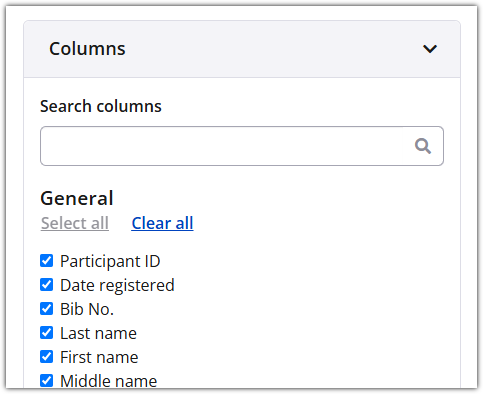
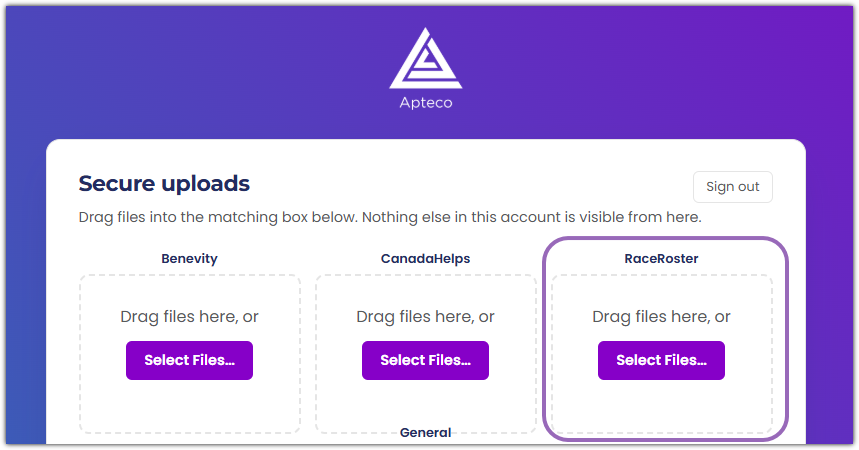
Upload both files to your Race Roster folder on the Apteco upload site. The file names don't matter.
Anyone who is in both the export and the webhook is merged into one record, not counted twice.
After the race: donations
Donations come from Race Roster's Donation report, not the webhook. After the race, once donations have closed:
Export the race's Donation report (Fundraising > Donation report > Download) as a CSV file. Selecting all columns is fine.
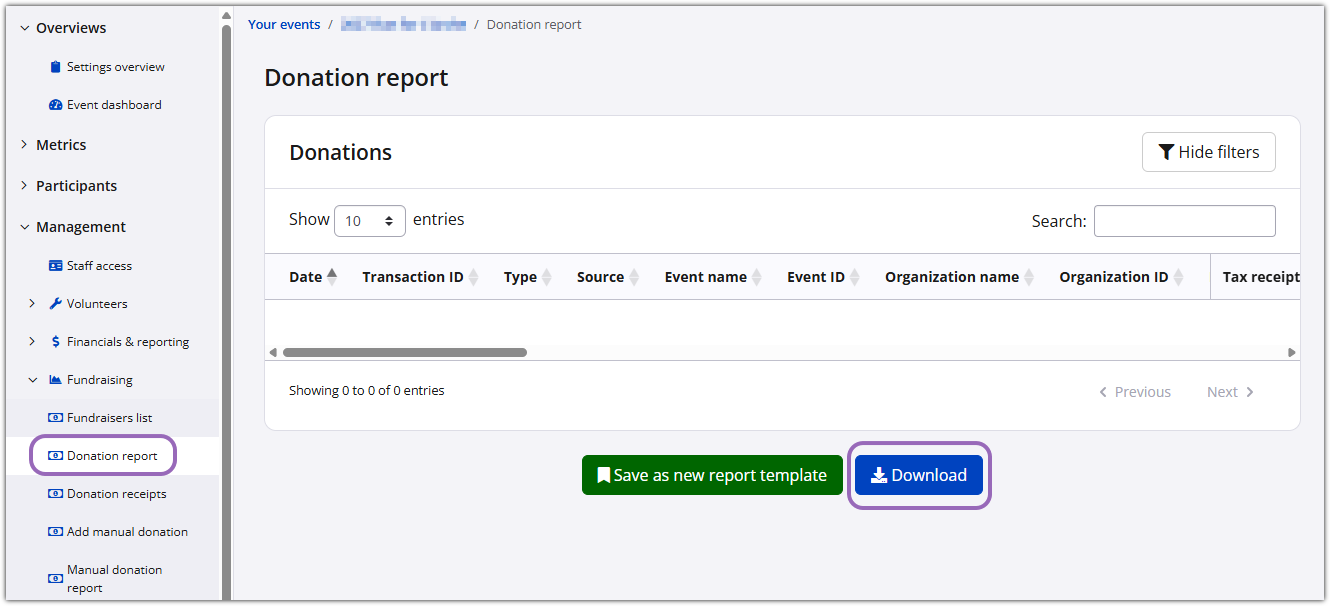
Upload it to your Race Roster folder on the Apteco upload site, the same way as the participant list.
Let Apteco know it's there.
Gifts typed in by hand: if your team enters gifts into Race Roster by hand (offline donations) so the race total is right, and those gifts are also recorded somewhere else, such as cheques or another donation platform, tell Apteco. They can be left out so they aren't counted twice.
You can upload a newer Donation report at any time, for example if late gifts come in. Nothing is doubled: the newest copy of each donation replaces the older one.
If something doesn't look right
- A sample was sent but didn't arrive: check the Endpoint URL, that Race Roster's own API key was replaced (step 5), and that the webhook is Active.
- Runners come through but not volunteers: the triggers say all instead of any, or the volunteer Date Registered rule is missing (step 7).
- People have no email preference: this race's email opt-in and privacy questions weren't ticked (step 6).
- The race has no date: Event date wasn't ticked (step 6). Tick it, or just tell Apteco the race date.
- People who registered early are missing: they registered before the webhook existed. Upload the participant and volunteer exports (see If registration is already open).
If anything in Race Roster doesn't match what's described here, email Apteco at matt.such@apteco.ca. If it's easier to set it up together, we're happy to do it on a call.
Where your race shows up in CiviCRM
Race Roster records are added to CiviCRM at the next scheduled update, not the moment someone registers.
- The race: an Event of type Fundraiser, named after the race, on the race date.
- Runners and volunteers: participants on that event, with the role Attendee (runners) or Volunteer, status Registered. Fee Level shows their distance, or a volunteer's activity. The Race Roster section of the participant record holds their Distance, Team, Amount Raised and Volunteer Activity.
- New people: anyone not already in CiviCRM is added, matched on email and name. Someone who answers No to the race's email or privacy question is added with No bulk emails. An existing contact's email preference is never changed.
- Volunteers are also added to your Volunteers group.
- Donations: contributions with the source Race Roster (or Race Roster (Offline) for gifts typed in by hand). A gift made on a runner's fundraising page is also soft credited to that runner.
- Gifts that can't be matched to one person wait in Donations Needing a Contact for someone to choose the donor: see Donations needing a contact.