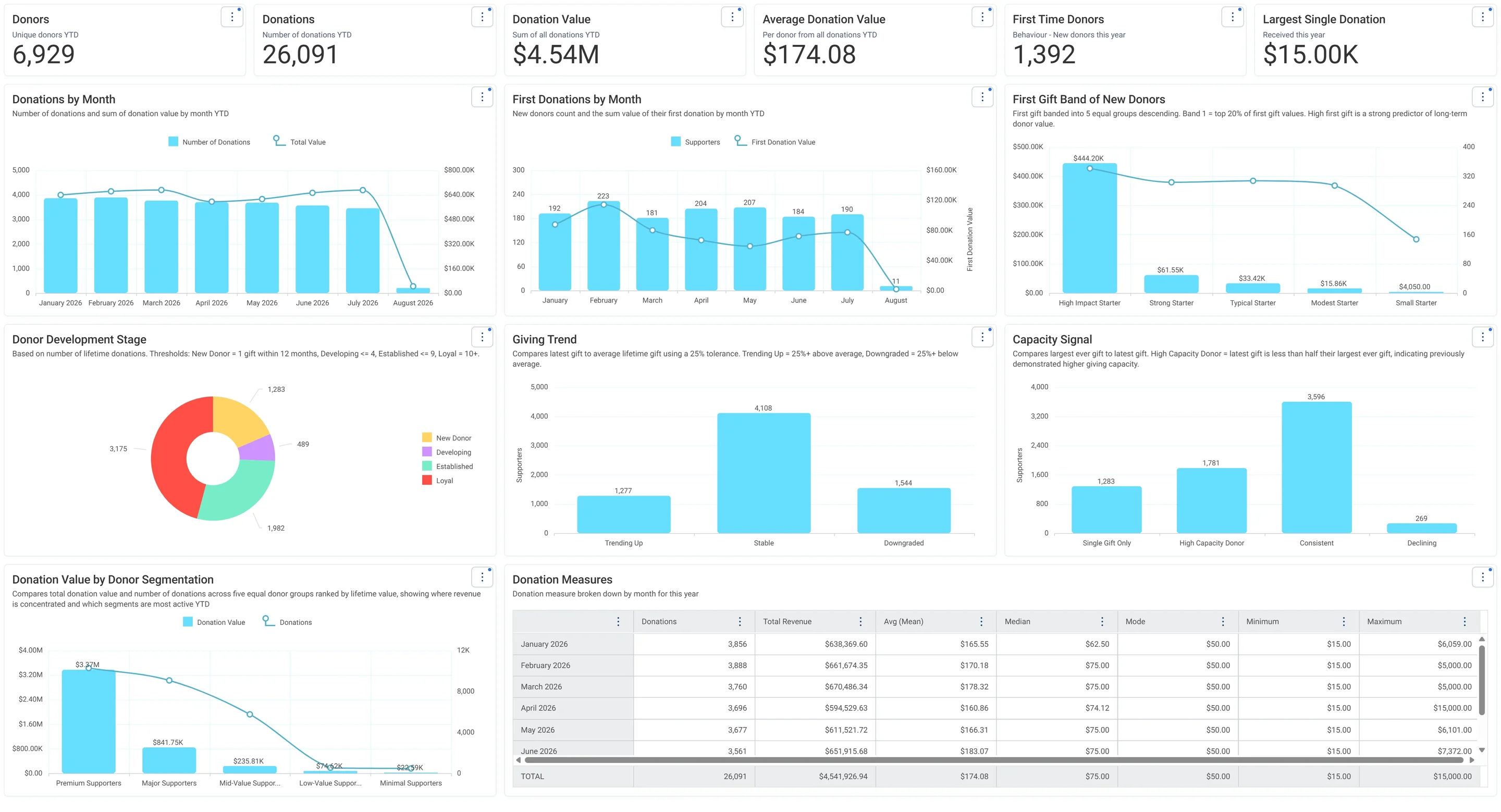
Apteco Mission gives you one place to read a donor's giving before you write to them. The Donation Analysis dashboard has an Individual tab. You filter to one donor and see a Donor Details card beside totals for all giving, gifts by quarter and the average gift by month. Mission does not make mail merge letters, but it is a good second check on one. For the letter's table, there are two ways. Try your CRM first. If it can't do it, use Excel and Word.
Try your CRM first. Many CRMs can put a list of each donor's gifts into a year-end letter or giving statement. That saves time and avoids copy errors. Search your own CRM's help for "year-end statement" or "giving statement". If the tool is there, use it, and check a few letters by hand before you print.
Get the gifts out. If your CRM can't do it, export one row per gift: donor ID, name, address, gift date and amount. Group gifts by the donor ID, not the name, because two donors can share a name. Add a column for the year of each gift. Leave out anything you don't show in the letter, like soft credits or gifts in kind.
Reshape it in Excel. Make a PivotTable from the gift rows. Put donor ID in Rows, the year in Columns, and the gift amount in Values, as a sum. Now each donor is one row, with a total for each year. Copy the result and paste it as values on a new sheet. Add the name and address back by donor ID. Give each year column a clear name, like Gifts_this_year and Gifts_last_year, and add a total column.
Build the letter in Word. Insert a small table where the summary goes, with one row for each year. Type the year in the first column and insert the matching merge field in the second. Microsoft's guide says your column names become the fields you insert, the data must be on the first sheet, and currency should be formatted correctly in the spreadsheet. Add a total row from the total column. Preview several donors, including one who skipped a year, before you merge.
If you need every gift listed. A total for each year is simple. A list of every gift, with a different number of rows for each donor, is harder in Word on its own. Volunteers on Microsoft's answers forum point to Word's directory merge, or to a many-to-one add-in, for that job. At that point, a CRM that builds the list for you is often the simpler path.
Check before it goes out. Compare a handful of letters with the CRM. Make sure each total matches the donor's history and your receipts. Look hard at any table that seems short. It can mean the donor's gifts are split across two records. Mission matches your CRM and your giving platforms into one record per supporter (Does Apteco Mission replace my CRM?). It also works out each donor's largest gift and giving trend (Donation Analysis). Your CRM keeps the receipts and the history it holds today.