Apteco Mission Field Guide Schedule Time with an Apteco Architect Play with a Live System

Audiences

28 ready-made audiences

An audience is a list of people that Orbit keeps up to date for you. Each one below answers one question, like who is about to stop giving, or which volunteers have never given.
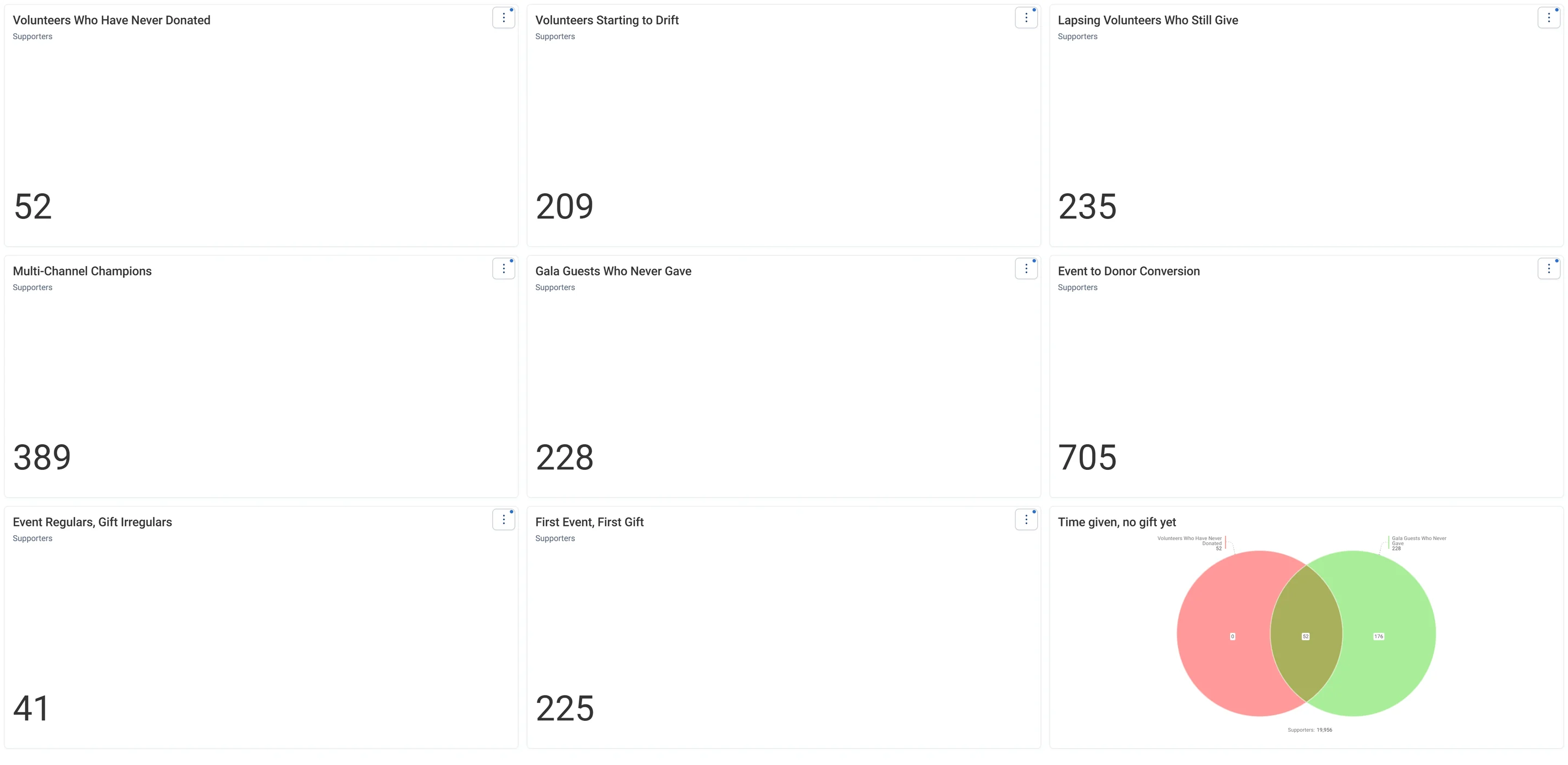
Field Guide Audiences · Engage, in Apteco Orbit: The Engage tab, with a grid of audience tiles for volunteers and event guests who could give, and a circle diagram showing where the lists overlap.
Field Guide Audiences · Engage The Engage tab, with a grid of audience tiles for volunteers and event guests who could give, and a circle diagram showing where the lists overlap. A fundraiser picks a tile and turns volunteers and event guests into donors.

Sample charity: the people and numbers in these screens are made up, so the picture shows the tool, not a result.
Keep

Look after supporters so they keep giving: welcome new donors, win back people who are drifting and avoid asking too often.

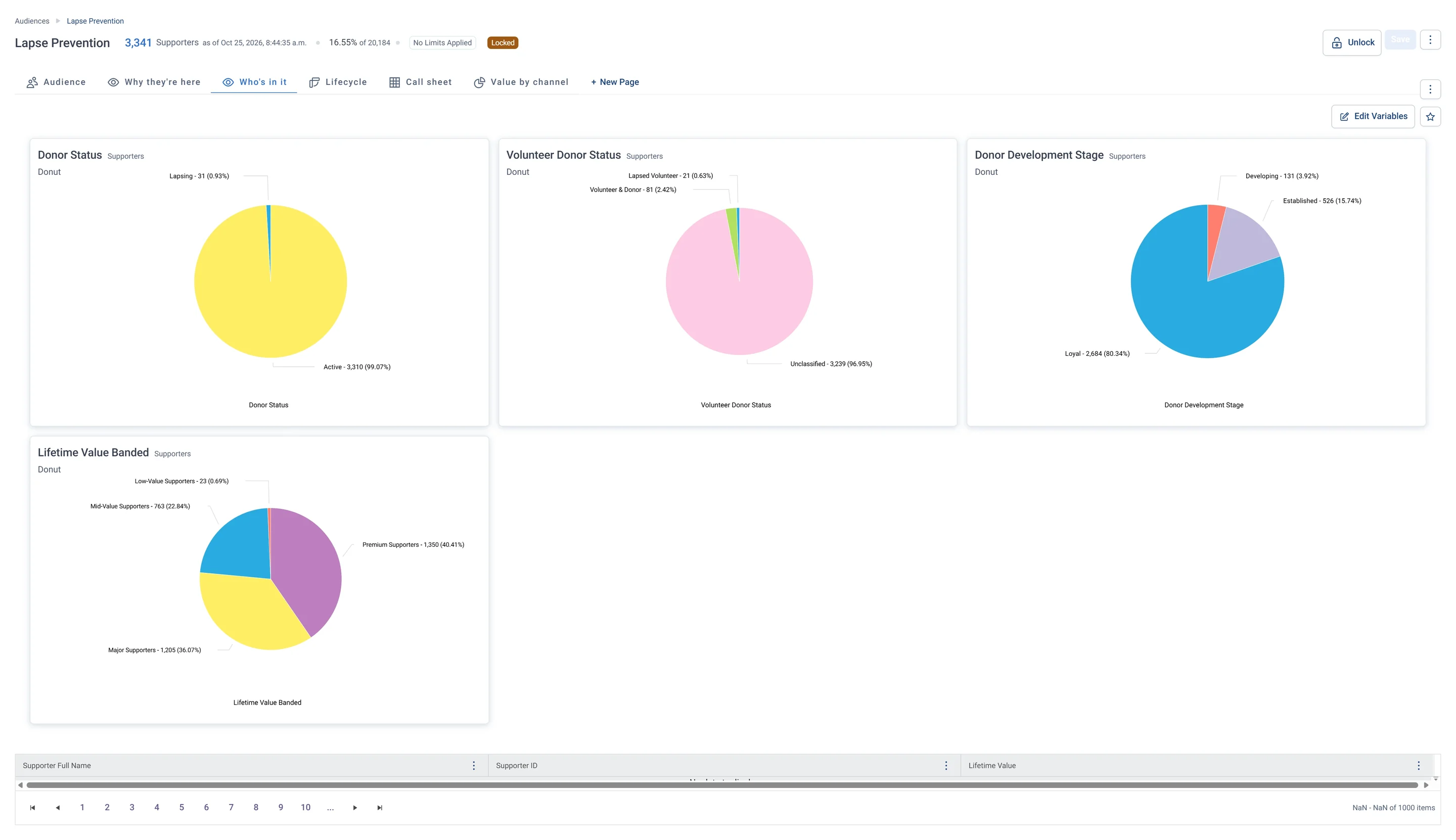
Lapse Prevention · Who's in it, in Apteco Orbit: The Who's in it tab: four donuts of donor status, volunteering, stage and value band, nearly all Active and Loyal, mostly Premium or Major.
Lapse Prevention · Who's in it The Who's in it tab: four donuts of donor status, volunteering, stage and value band, nearly all Active and Loyal, mostly Premium or Major. These are loyal, high-value donors, so a quick thank-you or call is worth it.

Grow

Supporters who could give more: who to ask for a bigger gift, a monthly gift or a major gift.

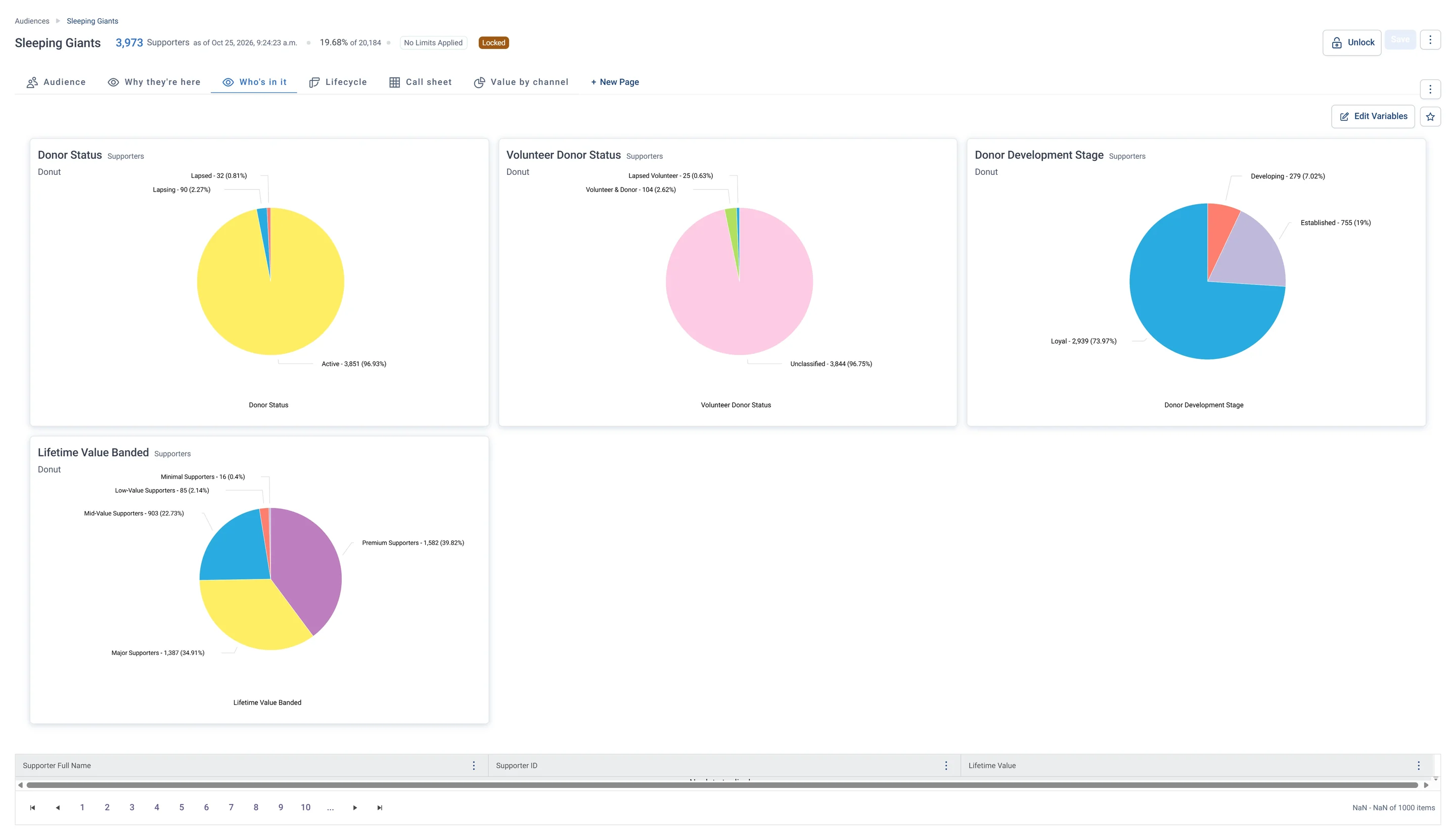
Sleeping Giants · Who's in it, in Apteco Orbit: The Who's in it tab: four donuts of donor status, volunteer status, donor stage and lifetime value.
Sleeping Giants · Who's in it The Who's in it tab: four donuts of donor status, volunteer status, donor stage and lifetime value. Most are loyal, active givers who already trust the charity, so a bigger ask is a natural next step.

Engage

People who help in other ways, as volunteers or event guests, and could be invited to give.

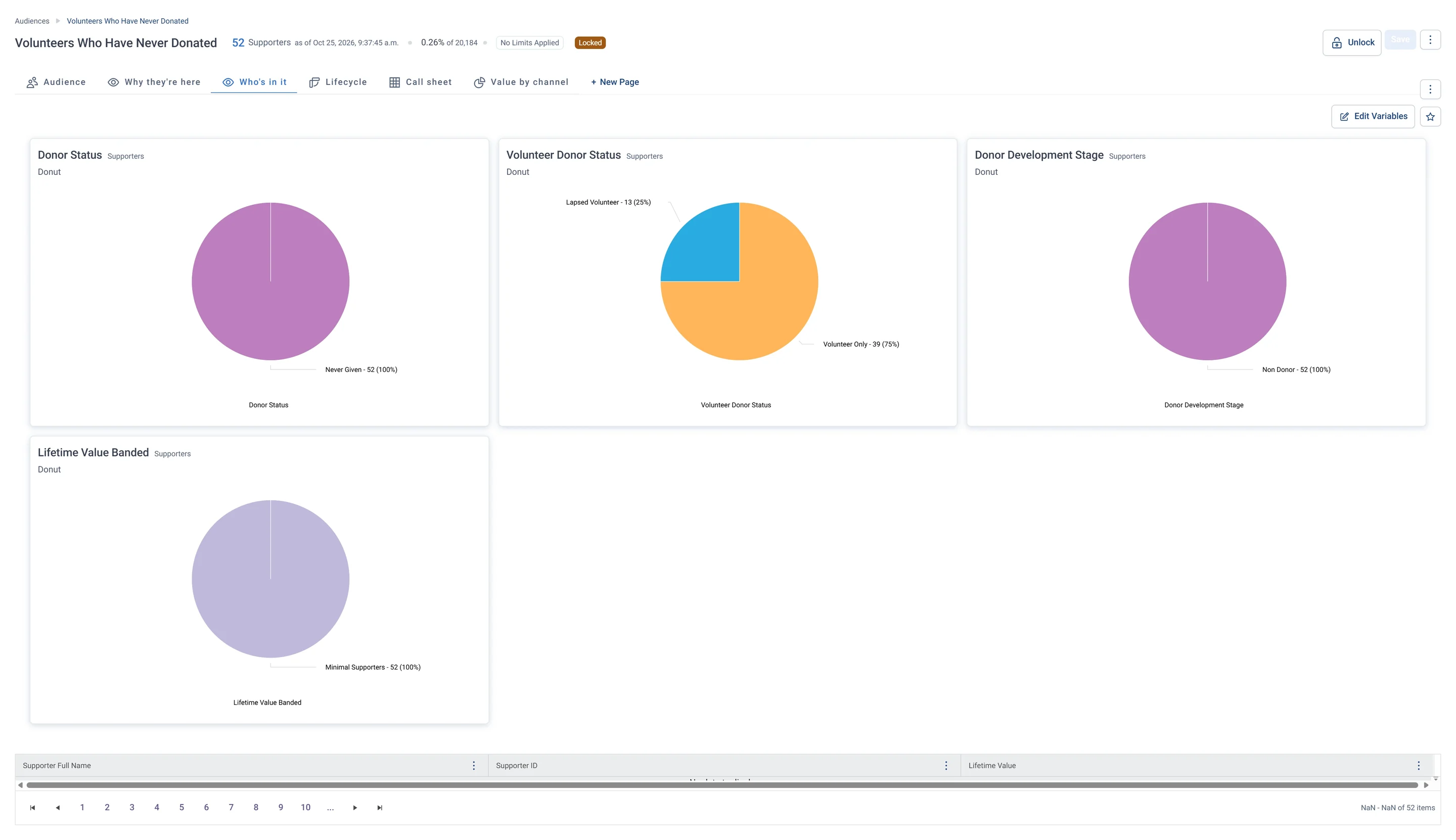
Volunteers Who Have Never Donated · Who's in it, part 1 of 2, in Apteco Orbit: The first half of the Who's in it tab: donuts of donor status, volunteer status, donor stage and lifetime value.
Volunteers Who Have Never Donated · Who's in it, part 1 of 2 The first half of the Who's in it tab: donuts of donor status, volunteer status, donor stage and lifetime value. Everyone is a Non Donor who has Never Given, so this group gives time, not money, so far.

Funders

Grant work: reports that are due, and past funders to check in with before they drift away.

Field Guide Audiences · Funders, in Apteco Orbit: The Funders tab, with audience tiles for grant work, Funders Due a Report and Returning Funders at Risk.
Field Guide Audiences · Funders The Funders tab, with audience tiles for grant work, Funders Due a Report and Returning Funders at Risk. A grants manager uses them to send reports on time and reach out to funders before they drift away.

Find

New people who look like your best supporters, found by Orbit's Find Look-alikes.

Best Supporters (seed for Look-alikes) · Audience rules, in Apteco Orbit: The rules tab: two rules under Includes, Donor Development Stage is Loyal and Donor Status is Active, and nothing under Excludes.
Best Supporters (seed for Look-alikes) · Audience rules The rules tab: two rules under Includes, Donor Development Stage is Loyal and Donor Status is Active, and nothing under Excludes. These best current donors are the seed list for finding look-alikes who could become great donors too.

Built for campaigns

Not headline lists: the splits, triggers and seed lists a campaign journey runs on, like a cold-month suppression. Each has its own page, with its rules as built.

Splits

Triggers

Seed lists

Built from Behaviours

Saved lists Orbit keeps current by itself, one Behaviour each: who gave this year, who came back, who still volunteers.

Learn Mission is a free course. Part 5 shows you how to build, read and tidy an audience in Orbit.

Build one yourself

Start with ready-made audiences, then build your own.

Start the course