
Apteco Learn Mission Schedule Time with an Apteco Architect Play with a Live System

Get to know the list

Stop 34 of 58 · about 12 minutes

You've built an audience. Who is actually on it? Most lists get built, exported and emailed within the same hour, without anyone looking at who is on them.
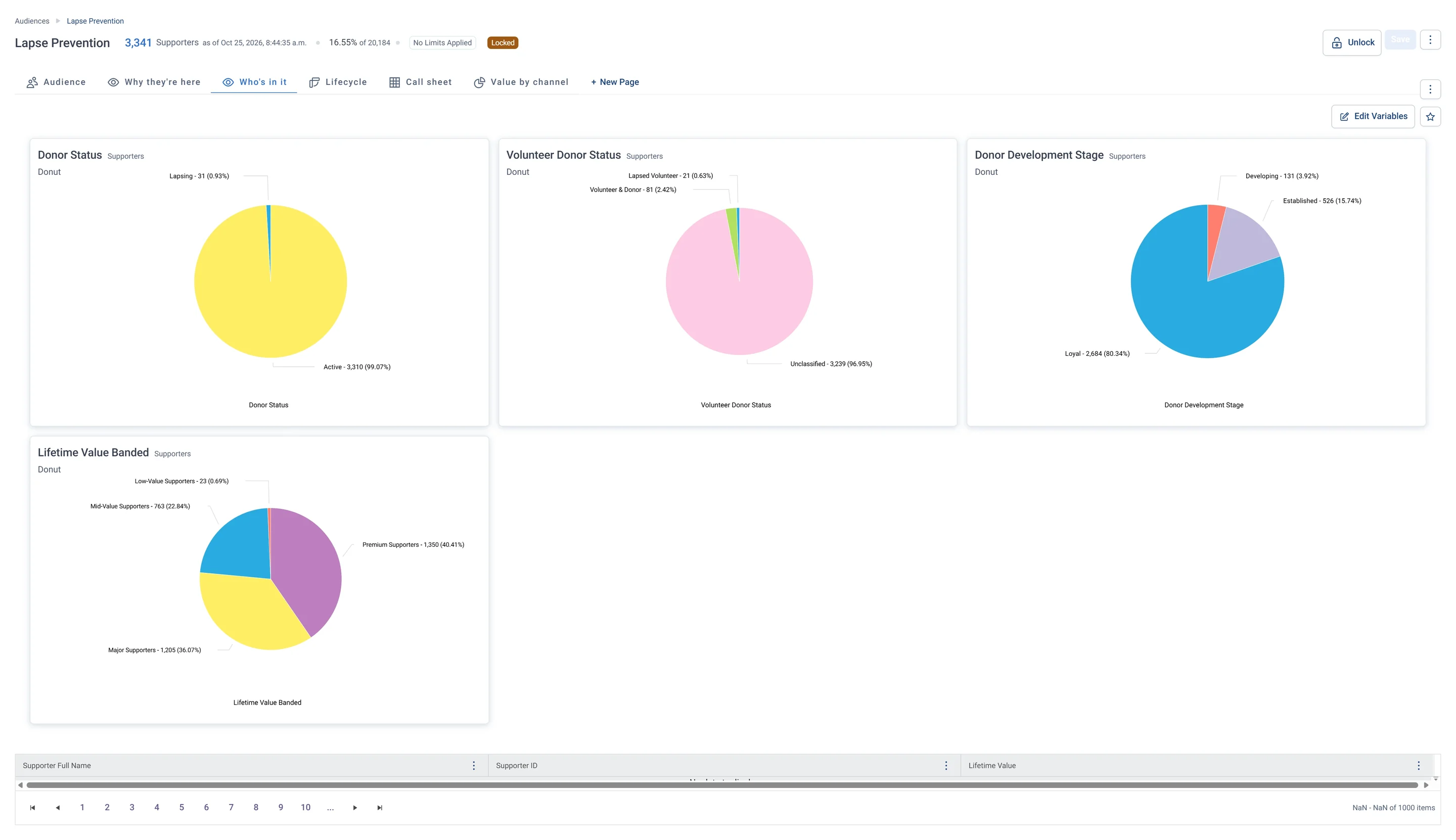
A workbook with views added: Lapse Prevention on the demo charity, with Why they're here, Who's in it, Lifecycle, Call sheet and Value by channel as tabs. Who's in it profiles the list in four donuts: donor status, volunteer status, donor stage and lifetime value.
A workbook with views added: Lapse Prevention on the demo charity, with Why they're here, Who's in it, Lifecycle, Call sheet and Value by channel as tabs. Who's in it profiles the list in four donuts: donor status, volunteer status, donor stage and lifetime value. Open full size

Sample charity: the people and numbers in these screens are made up, so the picture shows the tool, not a result.
The lesson

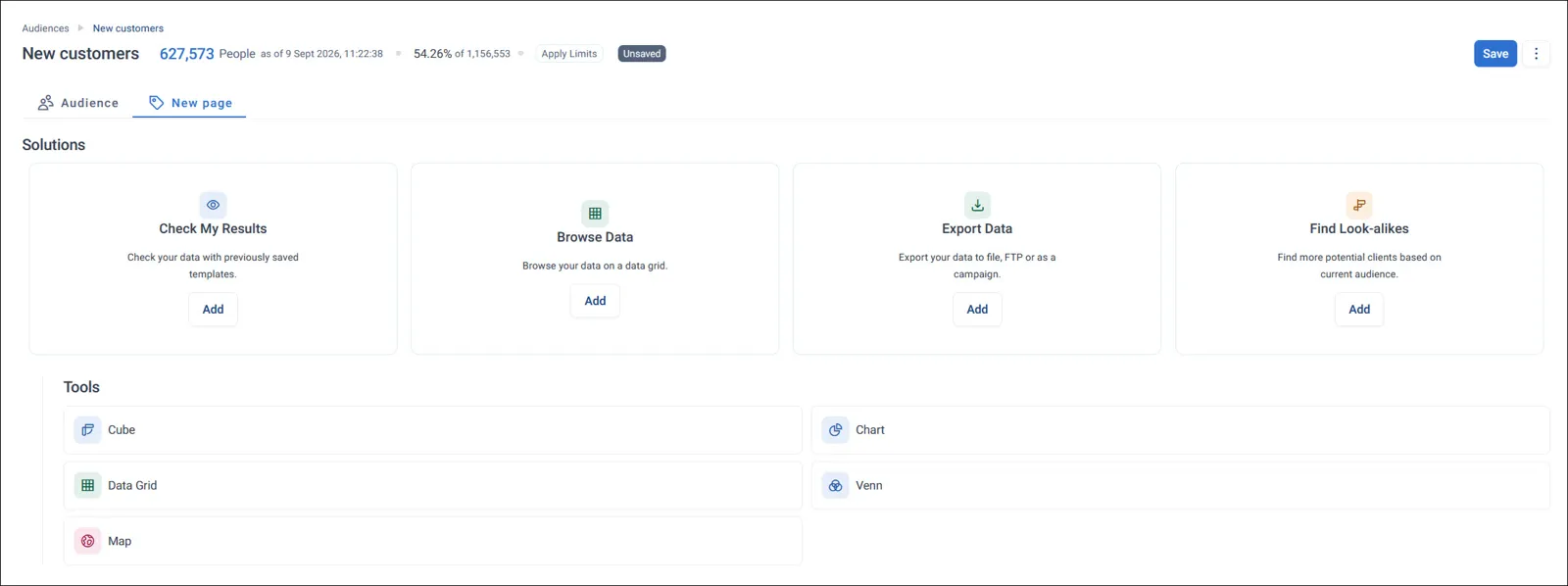
Every audience opens as a workbook: one audience, with as many views as you like in tabs along the top. Add views from the New Item tab.

  • Check My Results builds charts so you can sense-check who is in your audience.
  • Browse Data shows the records. Switch to Page View to see one person at a time.
  • Export Data sets up a list for another system.
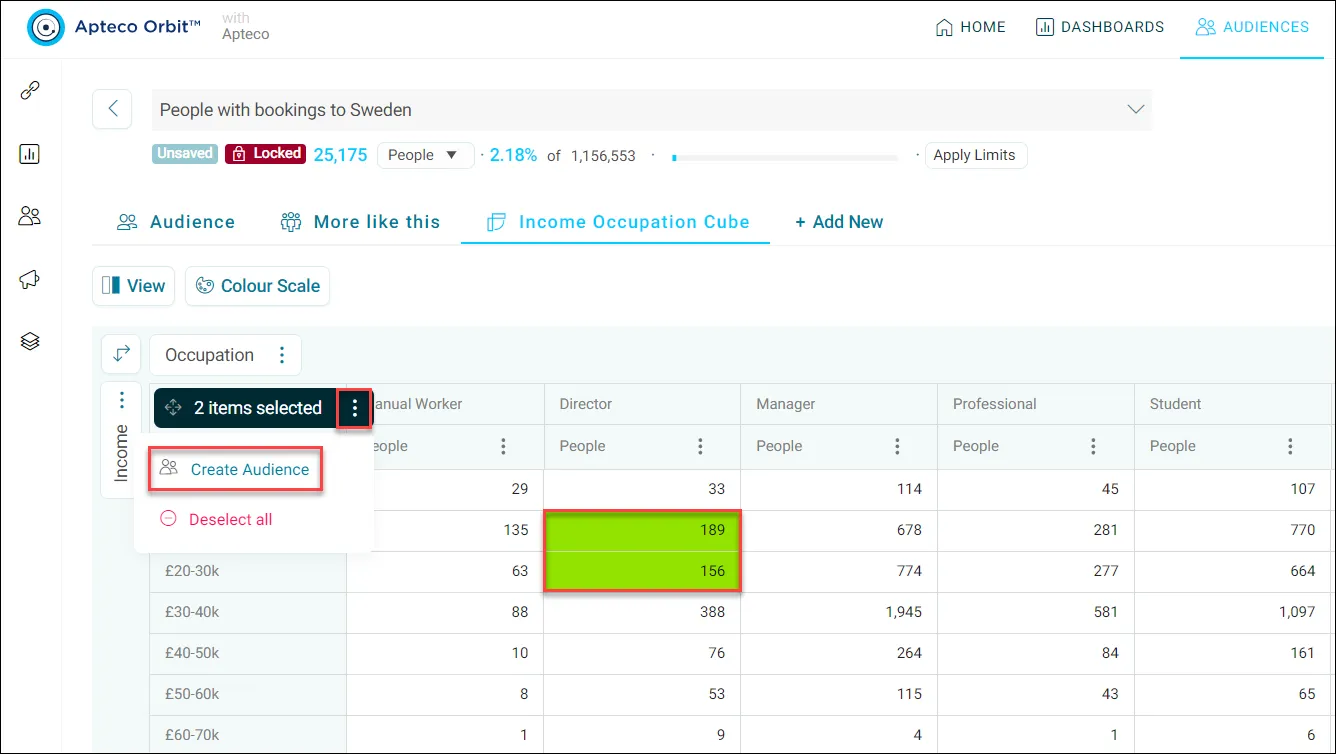
  • Cubes, from the Tools menu, cross two things, like Donor Status by Volunteer Donor Status. Select cells in a cube to make a new audience from just those people.

Star anything you will reuse and it is saved to Favourites.

Watch this stop · about a minute

More of it in Orbit

The New Page picker in a workbook: Check My Results, Browse Data, Export Data and Find Look-alikes, then Cubes, Charts and Maps.
The New Page picker in a workbook: Check My Results, Browse Data, Export Data and Find Look-alikes, then Cubes, Charts and Maps. Help Hub: Audience workbooks
Select cells in a cube and click Create Audience: a new audience from just those people.
Select cells in a cube and click Create Audience: a new audience from just those people. Help Hub: New audience from a cube

Your turn, in Orbit

  1. Open the audience you built by hand.
  2. On the New Item tab, add Check My Results (Auto Generated).
  3. Add Browse Data and switch to Page View.
  4. Add a cube from the Tools menu: Donor Development Stage by Volunteer Donor Status.
  5. Star something you'd reuse.

Quick check

You want to see the actual people, one at a time. What do you use?
  • Check My Results
  • Browse Data in Page View
  • A cube

Answer: Browse Data in Page View

You want stage by volunteer status in one grid. What do you use?
  • A cube
  • Export Data
  • A pin

Answer: A cube

You want to reuse a set of charts next month. What do you do?
  • Rebuild them
  • Star them as a favourite
  • Export to Excel

Answer: Star them as a favourite

Need a hint?

Check My Results checks. Browse Data shows records. Cubes cross two things. Stars save for later.

Why it matters

Get to know a list before you use it, and every message reaches the right person.

Read on

Learn Mission is a free course. You read a little, do it yourself, then answer one quick check. Orin, the assistant in Orbit, walks with you. Your progress stays in your browser.

Do this stop yourself

It is stop 34 of 58. Open it in the course, or start from the beginning.

Open this stop in the course