Apteco Learn Mission Schedule Time with an Apteco Architect Play with a Live System

Charity Overview: the board pack

Stop 9 of 58 · about 9 minutes

How is your organization doing, at a glance, and is the board's answer ready? Board numbers are often rebuilt by hand before each meeting: the CRM, the finance system, a grants spreadsheet, a coordinator's own counts. Some CRMs only report one month at a time, so a year-on-year comparison becomes a manual job.

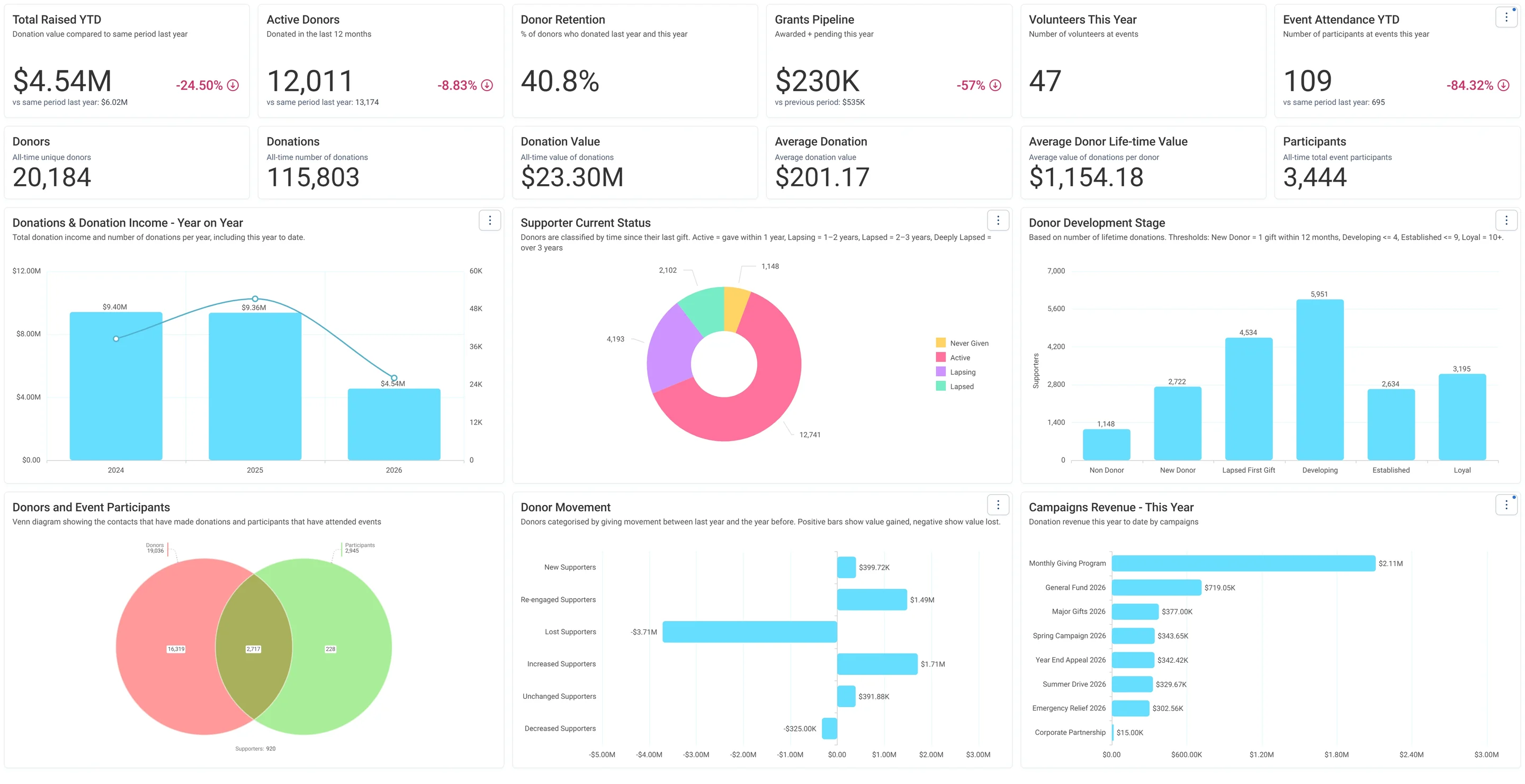
The Summary tab of Charity Overview on the demo charity: Total Raised YTD, Active Donors, Donor Retention, Grants Pipeline, Volunteers This Year and Event Attendance YTD across the top, each against the same period last year where it has one, then the all-time cards and six charts.
The Summary tab of Charity Overview on the demo charity: Total Raised YTD, Active Donors, Donor Retention, Grants Pipeline, Volunteers This Year and Event Attendance YTD across the top, each against the same period last year where it has one, then the all-time cards and six charts. Open full size

Sample charity: the people and numbers in these screens are made up, so the picture shows the tool, not a result.

The lesson

Charity Overview is your organization's front page. The number cards along the top give the quick read: Total Raised YTD, Active Donors, Donor Retention, Volunteers This Year and Event Attendance YTD.

Under most numbers is a line comparing it to the same period last year. That comparison is usually the real story, and it stays fair whatever month your meeting falls in. A card that counts an audience, like Volunteers This Year, shows its number without that line.

Two cards are built from Behaviours. Donor Retention is the share of last year's donors who have given again this year. Volunteers This Year counts people with a timesheet this year, so each volunteer counts once.

The Fundraising and Engagement tabs go deeper. Your tiles may differ a little, depending on the data you sent.

This is the Field Guide's Board Pack That Builds Itself pathway: share the dashboard with your board as Viewers two weeks before the meeting, look at the same live numbers in the room, and Export as PDF for the minutes afterwards, with just the tabs you choose.

Watch this stop · about a minute

More of it in Orbit

Summarise Dashboard: Orin reads the open dashboard and writes a short summary.
Summarise Dashboard: Orin reads the open dashboard and writes a short summary. Help Hub: Orin capabilities

Your turn, in Orbit

  1. Open Charity Overview.
  2. Read each number card, and the comparison line where there is one. Find the number that rose most and the one that fell most.
  3. Click the Fundraising tab, then the Engagement tab.
  4. In view mode, open the menu in the top right and find Export as PDF. You don't have to export.

Quick check

Which number moved most compared to last year, and which way?

Write your answer in the course; it stays in your browser.

Need a hint?

The "vs same period last year" line under a card shows the direction.

Why it matters

Walk into any meeting knowing how your organization is doing, with the board looking at the same page.

Learn Mission is a free course. You read a little, do it yourself, then answer one quick check. Orin, the assistant in Orbit, walks with you. Your progress stays in your browser.

Do this stop yourself

It is stop 9 of 58. Open it in the course, or start from the beginning.

Open this stop in the course