Apteco Learn Mission Schedule Time with an Apteco Architect Play with a Live System

Build the email

Stop 41 of 58 · about 15 minutes

Can you build a thank-you email that says the supporter's name? Five staff each spending two hours a week sending thank-yous by hand is a pattern we keep seeing. The emails go out late, or not at all.

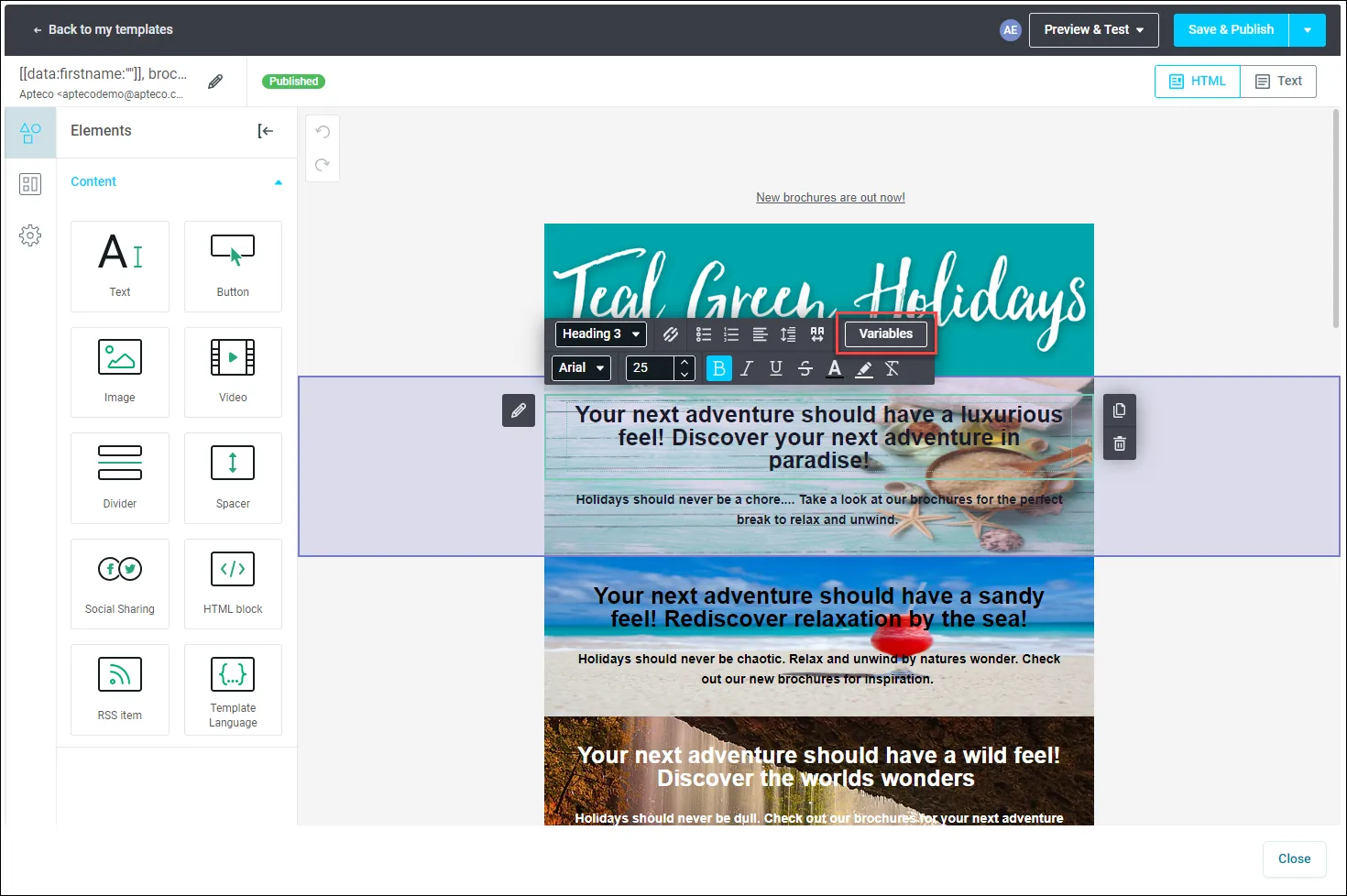
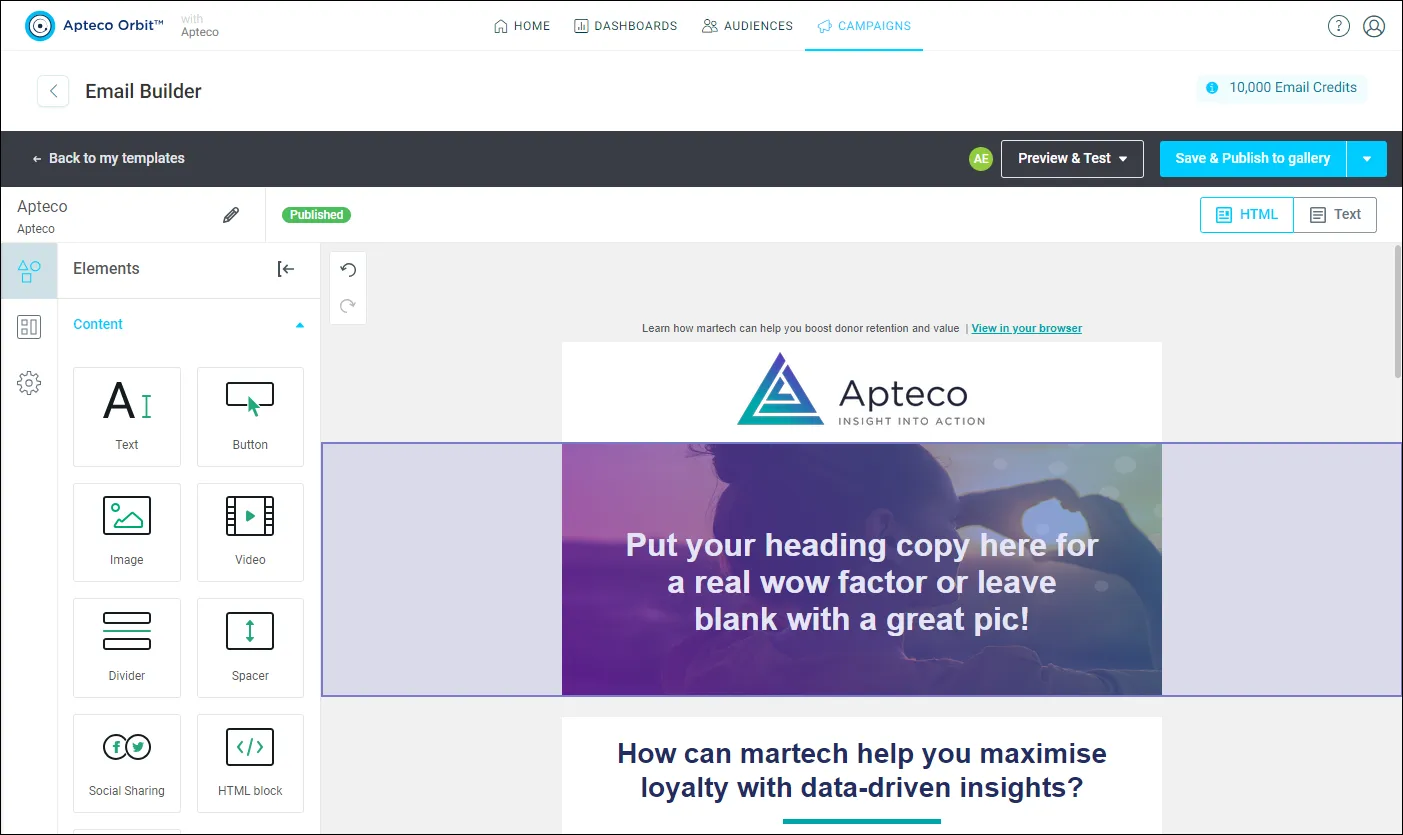
Editing a template: the elements on the left, dragged onto the email on the right.
Editing a template: the elements on the left, dragged onto the email on the right. Help Hub: Creating a template

Sample charity: the people and numbers in these screens are made up, so the picture shows the tool, not a result.

The lesson

Open the Email Builder one of three ways: from the Campaigns screen (top right), from the Orbit homepage's Quick Actions if you are an Admin, or from a journey's email step with Apteco Email as the channel. From the step, open the options menu on the right of the template, click New Template, choose marketing or transactional, and click Create.

Build by dragging elements onto the template: Text, Button, Image, Video, Divider, Spacer, Social Sharing, HTML block and RSS item.

  • Text: click the box, highlight the words and type over them. The Variables button inserts a contact property like first name, with a default value for anyone who has none. "Dear friend" beats "Dear ,".
  • Image: upload a file, paste a link, or pick from your gallery. Add ALT text. Keep images under 2 MB. Enter a URL and click Apply to make it clickable.
  • Button: your one ask, or your one link to the impact story.

Write it plainly. One idea per line. Thank them for the specific thing: the gift, the shift, the walk.

Watch this stop · about a minute

More of it in Orbit

The Variables button in a text block: insert a contact property like first name, with a default value.
The Variables button in a text block: insert a contact property like first name, with a default value. Help Hub: Personalise with variables

Your turn, in Orbit

  1. Open your campaign and the email step, with Apteco Email as the channel. Click New Template, choose Marketing, and click Create.
  2. Add a Text element. Write a thank-you of three or four short lines.
  3. Click Variables and insert the first name, with a default value.
  4. Add an Image with ALT text, and one Button.
  5. Save the template.

Quick check

A supporter has no first name on file. What does your email say?
  • "Dear ,"
  • The default value you set, like "Dear friend"
  • It won't send

Answer: The default value you set, like "Dear friend"

How big can an image be?
  • Any size
  • Under 2 MB
  • Under 20 KB

Answer: Under 2 MB

Need a hint?

Variables insert the field and let you set a default. Images stay under 2 MB.

Why it matters

A thank-you that lands the day a gift arrives is how a first gift becomes a second.

Learn Mission is a free course. You read a little, do it yourself, then answer one quick check. Orin, the assistant in Orbit, walks with you. Your progress stays in your browser.

Do this stop yourself

It is stop 41 of 58. Open it in the course, or start from the beginning.

Open this stop in the course