
Apteco Learn Mission Schedule Time with an Apteco Architect Play with a Live System

Preview and test

Stop 42 of 58 · about 8 minutes

What does it look like on a phone, and who sees it first? The first person to see a typo should be you, not four thousand supporters.
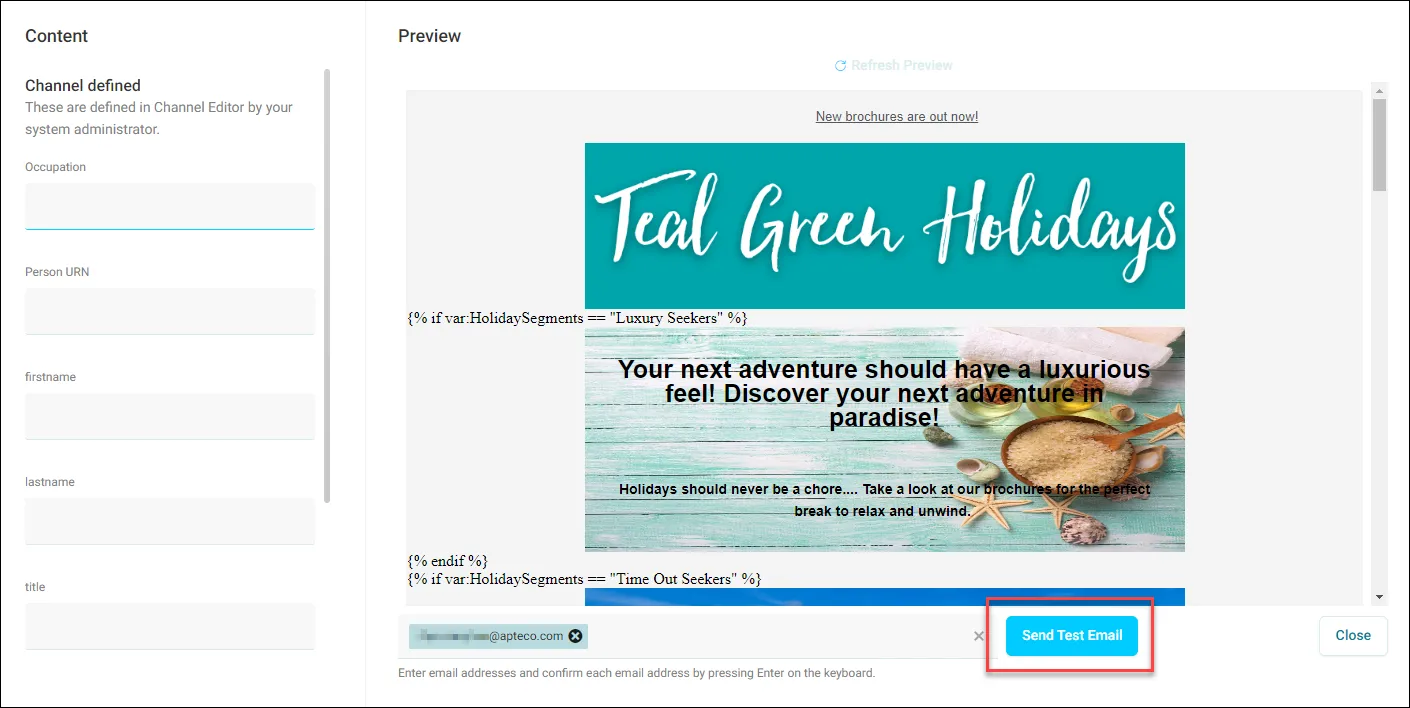
Send a test email: type one or more addresses and click Send Test Email.
Send a test email: type one or more addresses and click Send Test Email. Help Hub: Preview and test emails

Sample charity: the people and numbers in these screens are made up, so the picture shows the tool, not a result.

The lesson

From the Email Builder, click Edit under your template, then Preview & Test.

  • Preview email, then Start testing: pick the email clients and devices to see it in.
  • Send a test email: type one or more addresses, pressing Enter after each, and click Send. Test emails go to any address and arrive like the real thing.

From a journey, open the email step's option menu, click Edit, then the menu in the top right of the side panel, then Preview and Test Email.

Send a test to yourself and to one colleague who hasn't seen it. Read it on a phone.

Watch this stop · about a minute

Your turn, in Orbit

  1. Open your template and click Preview & Test.
  2. Click Preview email, then Start testing, and look at it on at least one phone client.
  3. Click Send a test email, add your own address and a colleague's, and click Send.
  4. Read the test on your phone. Fix anything you find.

Quick check

Where do test emails go?
  • Only to Admins
  • To any address you type in
  • To the whole audience

Answer: To any address you type in

What should you check on the test?
  • Only the subject line
  • The name variable, the links, and how it reads on a phone
  • Nothing, the preview is enough

Answer: The name variable, the links, and how it reads on a phone

Need a hint?

Any address. Check the variable, the links and the phone view.

Why it matters

Ten minutes of testing protects a relationship you spent years building.

Read on

Read more in the Apteco Help Hub

Learn Mission is a free course. You read a little, do it yourself, then answer one quick check. Orin, the assistant in Orbit, walks with you. Your progress stays in your browser.

Do this stop yourself

It is stop 42 of 58. Open it in the course, or start from the beginning.

Open this stop in the course