Apteco Learn Mission Schedule Time with an Apteco Architect Play with a Live System

Journeys and templates

Stop 39 of 58 · about 12 minutes

What does a campaign look like once it's built, and do you have to start from scratch? Somebody has already worked out a good way to welcome a new donor. Reinventing it every year is a tradition, not a requirement.

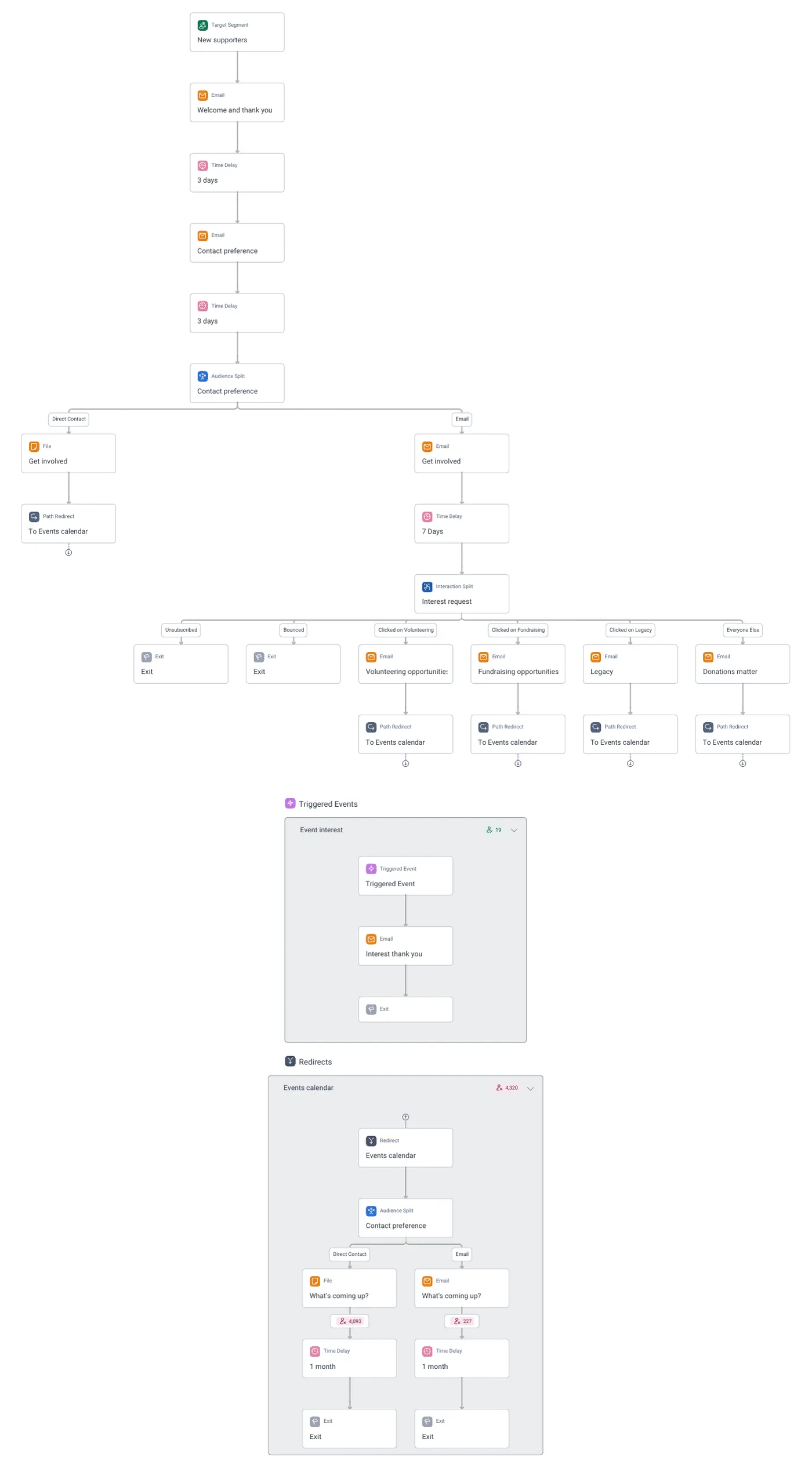
A real journey on the demo charity: Welcome. Target Segment at the top, emails and waits down the middle, splits that fan out, and the triggered event and redirect loop beside the main path. Part 6 reads it step by step.
A real journey on the demo charity: Welcome. Target Segment at the top, emails and waits down the middle, splits that fan out, and the triggered event and redirect loop beside the main path. Part 6 reads it step by step. Open full size

Sample charity: the people and numbers in these screens are made up, so the picture shows the tool, not a result.

The lesson

A campaign is a journey: who it is for, what they get, and when. You build it in the journey builder.

  • Target audience: who enters the journey. Your audience from the Audiences part goes here.
  • Channel steps: what people receive. Email through Apteco Email, or SMS, phone lists, ads and more.
  • Schedule: run once or on repeat. The Monday Call List runs every Monday.
  • Journey ToDos: a checklist of what is left to set up.

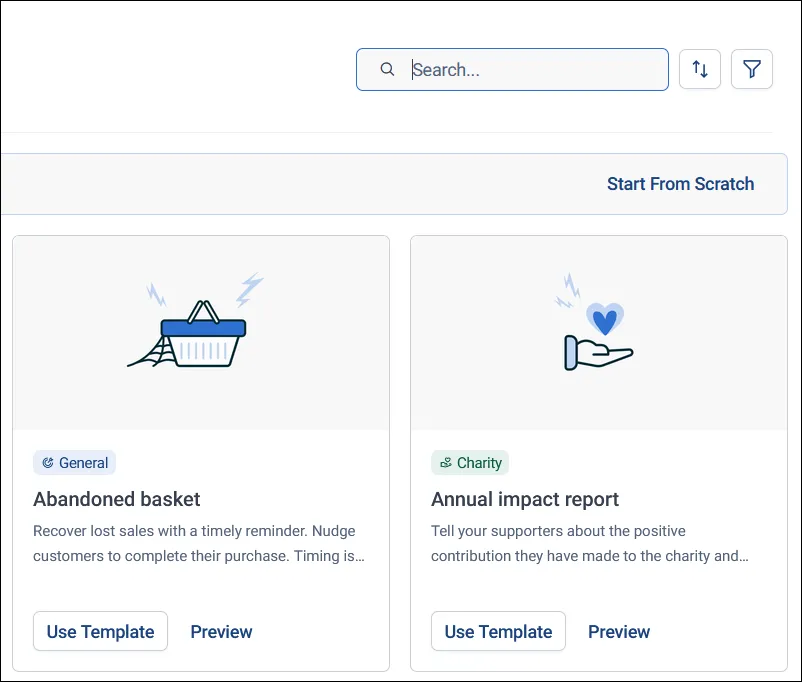
When you click + New, then Campaign, you see journey templates. The Predefined tab has sixteen built-in ones, from a single send to multi-stage journeys. The Custom tab has ones your organization saved. Click Preview to see a template step by step. When something works, open its menu and click Save as Template.

You can edit a draft while the live version keeps running. For a one-off send to a list that isn't in Orbit, use a quick message.

Watch this stop · about a minute

More of it in Orbit

New Campaign: journey templates with Preview and Use Template. One of them is a charity's annual impact report.
New Campaign: journey templates with Preview and Use Template. One of them is a charity's annual impact report. Help Hub: Journey templates

Your turn, in Orbit

  1. In Campaigns, open your folder and click + New, then Campaign.
  2. Browse the Predefined tab and Preview a template that fits your audience.
  3. Create a campaign from it. Name it, set Targeting to individuals, and click Create.
  4. Follow the Journey ToDos and add your audience as the target.
  5. Find the email step. Save, then click Exit Edit Mode. Don't publish yet.

Quick check

Your campaign is live and you edit its draft. What happens to the live version?
  • It stops
  • It keeps running
  • It sends twice

Answer: It keeps running

Your welcome journey works well. How does your team reuse it?
  • Save as Template
  • Send a screenshot
  • Copy it into every folder

Answer: Save as Template

You need one email sent to a spreadsheet of gala guests not in Orbit. What's quickest?
  • A quick message
  • A dashboard
  • A cube

Answer: A quick message

Need a hint?

Editing a draft doesn't stop the live campaign. Templates are starting points. Quick messages are for one-off sends.

Why it matters

Templates let a small team run journeys that used to need a whole department.

Read on

Pathways on this stop

Learn Mission is a free course. You read a little, do it yourself, then answer one quick check. Orin, the assistant in Orbit, walks with you. Your progress stays in your browser.

Do this stop yourself

It is stop 39 of 58. Open it in the course, or start from the beginning.

Open this stop in the course