Apteco Learn Mission Schedule Time with an Apteco Architect Play with a Live System

Volunteer Insights (v2): rates, not just counts

Stop 29 of 58 · about 6 minutes

What share of last year's volunteers came back, and what share of this year's are new? The second version of Volunteer Insights adds the rates a volunteer coordinator reports on: retention, recruitment, and how many stay for a second year. Both versions can live on one system.

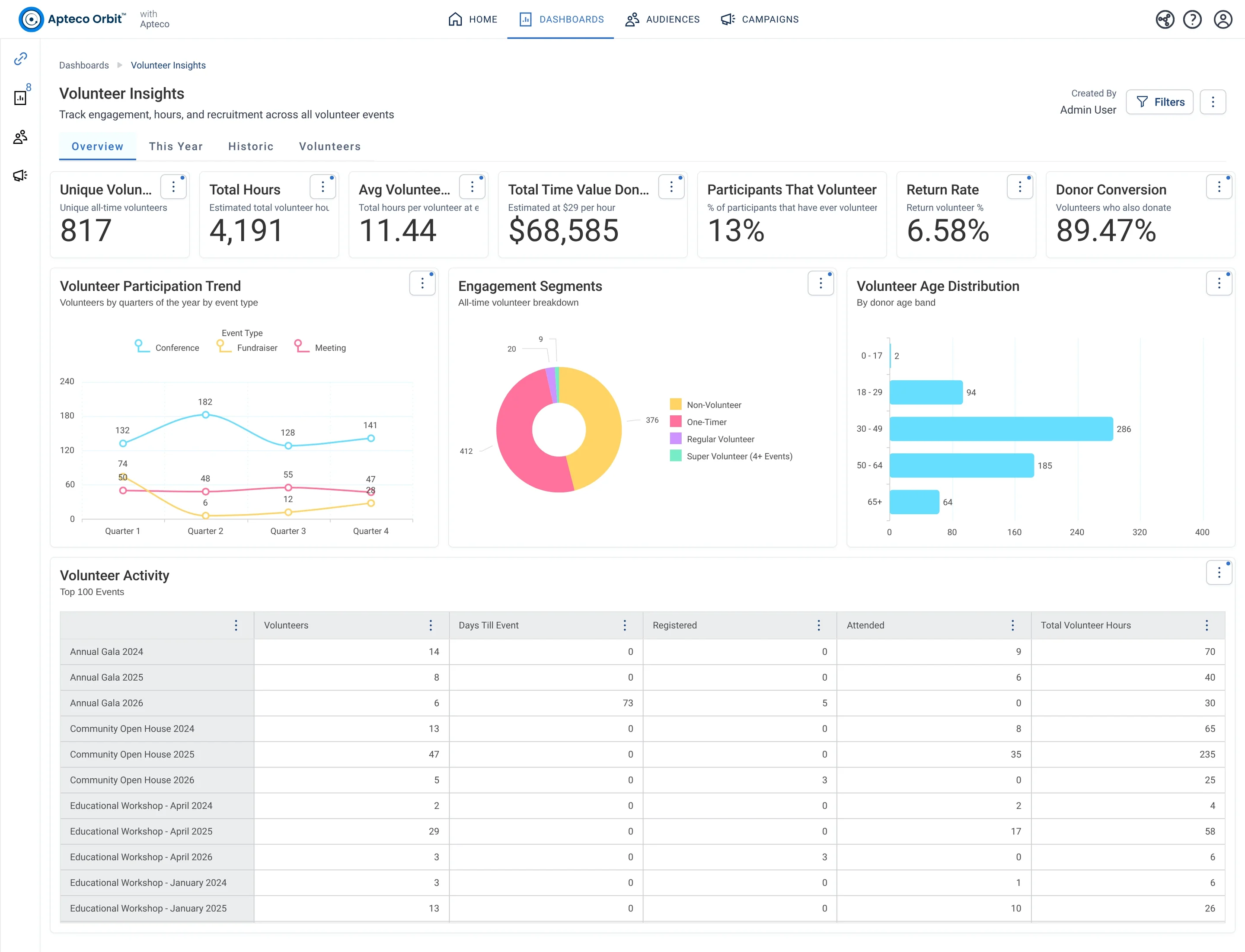
The Overview tab of Volunteer Insights (v2): Retention Rate and Recruitment Rate beside the counts, then Engagement Segments, the Volunteer and Donor Overlap, the age profile and activity over time.
The Overview tab of Volunteer Insights (v2): Retention Rate and Recruitment Rate beside the counts, then Engagement Segments, the Volunteer and Donor Overlap, the age profile and activity over time. Open full size

Sample charity: the people and numbers in these screens are made up, so the picture shows the tool, not a result.

The lesson

Volunteer Insights (v2) keeps the four tabs and sharpens the cards. Every card that counts volunteers counts people with a timesheet, through Behaviour audiences like Volunteered this year and Volunteers lapsing:

  • Overview: Unique Volunteers, Never Volunteered, Retention Rate (the percent of last year's volunteers who returned this year), Recruitment Rate (the percent of this year's volunteers who are brand new), Volunteer / Donor Rate and Total Hours all time. Charts: Engagement Segments (Non-Volunteer, One-Timer, Regular, Super Volunteer with 4 or more events), the Volunteer & Donor Overlap, Volunteer Age Profile and Volunteering Activity Over Time.
  • This Year: Active This Year, New Volunteers This Year, Retained From Last Year, Hours This Year, Volunteering Instances, Avg Lifetime Frequency, the Monthly Trend, Volunteering Hours by Month, the Engagement Mix funnel and Volunteering by Job.
  • Historic: Active Last Year and the Year Before, New Last Year, Hours Last Year, 3-Year Consistent Volunteers, At-Risk / Lapsing (volunteered last year but not yet this year), Tenure Distribution, Last Volunteered Year and Volunteer Hours by Job (top 20).
  • Volunteers: Avg Years as Volunteer, Avg Lifetime Hours, One-Timers, Regular, Super, At-Risk / Lapsing, the Recruitment Trend and Top Volunteers by Hours.

How to use it. The two rates on Overview are the headline for a volunteer report: a low retention rate with a high recruitment rate means you are refilling a leaky bucket. The At-Risk / Lapsing card on Historic is a list of people to call before the next event. If a card reads oddly on a new system (a very low retention rate in the first year of data, for example), check how many years of volunteer history were loaded before you alarm anyone.

Watch this stop · about a minute

More of it in Orbit

Engagement Segments: Non-Volunteer, One-Timer, Regular Volunteer and Super Volunteer (4 or more events).
Engagement Segments: Non-Volunteer, One-Timer, Regular Volunteer and Super Volunteer (4 or more events). Open full size

Your turn, in Orbit

  1. Open Volunteer Insights (v2), Overview. Read Retention Rate and Recruitment Rate side by side.
  2. Open Historic. Read At-Risk / Lapsing and 3-Year Consistent Volunteers.
  3. Open This Year. Read the Engagement Mix funnel.
  4. Write one sentence a coordinator could put in a report from these three cards.

Quick check

Retention Rate on Volunteer Insights (v2) measures...
  • The percent of this year's volunteers who are new
  • The percent of last year's volunteers who returned this year
  • Total hours divided by volunteers

Answer: The percent of last year's volunteers who returned this year

Need a hint?

Retention looks back: who came back.

Why it matters

Counts tell you how big the volunteer base is. Rates tell you whether it is growing or leaking.

Read on

Read more in the Apteco Help Hub

Learn Mission is a free course. You read a little, do it yourself, then answer one quick check. Orin, the assistant in Orbit, walks with you. Your progress stays in your browser.

Do this stop yourself

It is stop 29 of 58. Open it in the course, or start from the beginning.

Open this stop in the course